

Applicable Model:Tenda F9 Question Category:APP Management
Scene One: F9 has been configured (whether it can access internet or not)
2. A9 never bridge other signal before.
Scene Two: F9 restore the factory settings
1. The distance between A9 and F9 within 1 meter.
2. F9 need to configure settings on webpage, skip setup wizard.
3. A9 never bridge other signal before.
Scene One: F9 has been configured
1. Put A9 within 1 meter from F9, Power on them and without any operation. Wait a moment, A9 bridge led will be green, it means bridging successful.
2. If A9 have bridged other signal, please reset it and try again.
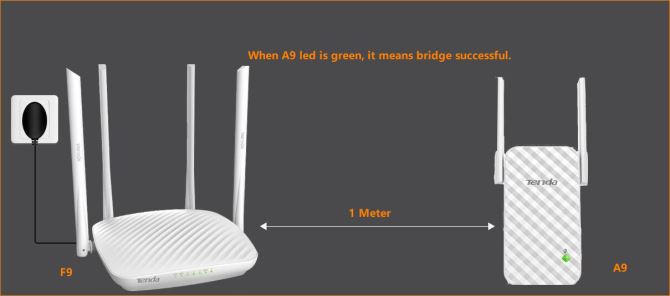
Scene Two: F9 factory status

PC or laptop connect to wireless router by cable:
Wired Connection:
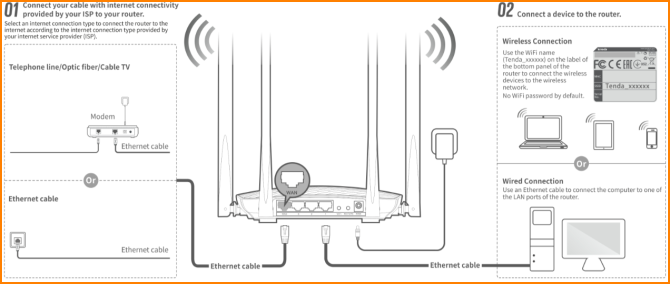
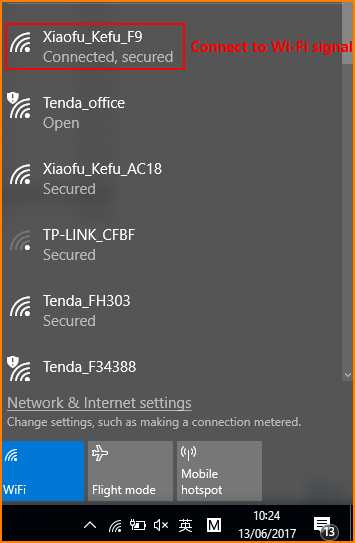
Wireless Connection:

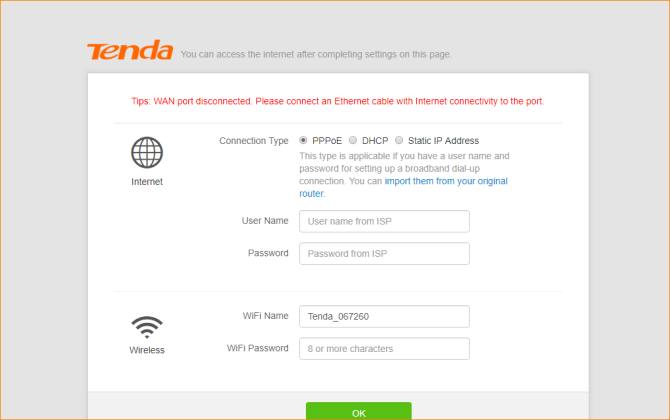
1. Open browser, input “tendawifi.com” or “192.168.0.1”in address bar and then you will login the management webpage of router. (default login username and password are both “admin”);
2. If there is exist Internet available, please configure internet settings (you can check how to use PPPOE mode to access internet document); If there is not exist Internet, please configure wireless parameter on homepage, and click “OK”;
3. Put A9 within 1 meter from F9, Power on them and without any operation. Wait a moment, A9 bridge led will be green, it means bridging successful. (If A9 bridge other signal before, please reset it first)